mirror of
https://jihulab.com/DGP-Studio/Snap.Hutao.Docs.git
synced 2025-11-19 21:16:31 +08:00
 b8ceb907c7
* update

* win10 uninstall

* add notes about root

* format

* modify

* update

* Update FAQ.md

* Update navbar

* Update docs

* Update Gacha-system-and-export-principal.md

* correct

* update

* disambig

* update

* add warning for auto-start (need re-update)

* update

* add a tabular for showing differences in each way for sync

* center tabular

* switch to md format

* update vs

* add some

* RE-update tabualr

* update

* correct

* update

* move web login to the end

* Update game-launcher.md

* Update docs

* Update character-data.md

---------

Co-authored-by: LinkChou <linkchou@yandex.com>
Co-authored-by: Masterain <i@irain.in>
248 lines
11 KiB
Markdown
248 lines
11 KiB
Markdown
---
|
|
headerDepth: 2
|
|
category: [Feature, Tutorial]
|
|
tag: [unlock framerate, convert server, switch account]
|
|
order: 4
|
|
comment: false
|
|
description: The game launcher within Snap Hutao offers additional features that enhance the gaming experience beyond what the official launcher provides. In addition to allowing users to add custom launch parameters, it also includes features such as server switching and unlocking frame rates. These features significantly improve the overall gaming experience.
|
|
---
|
|
|
|
# Game Launcher
|
|
|
|
|
|
|
|
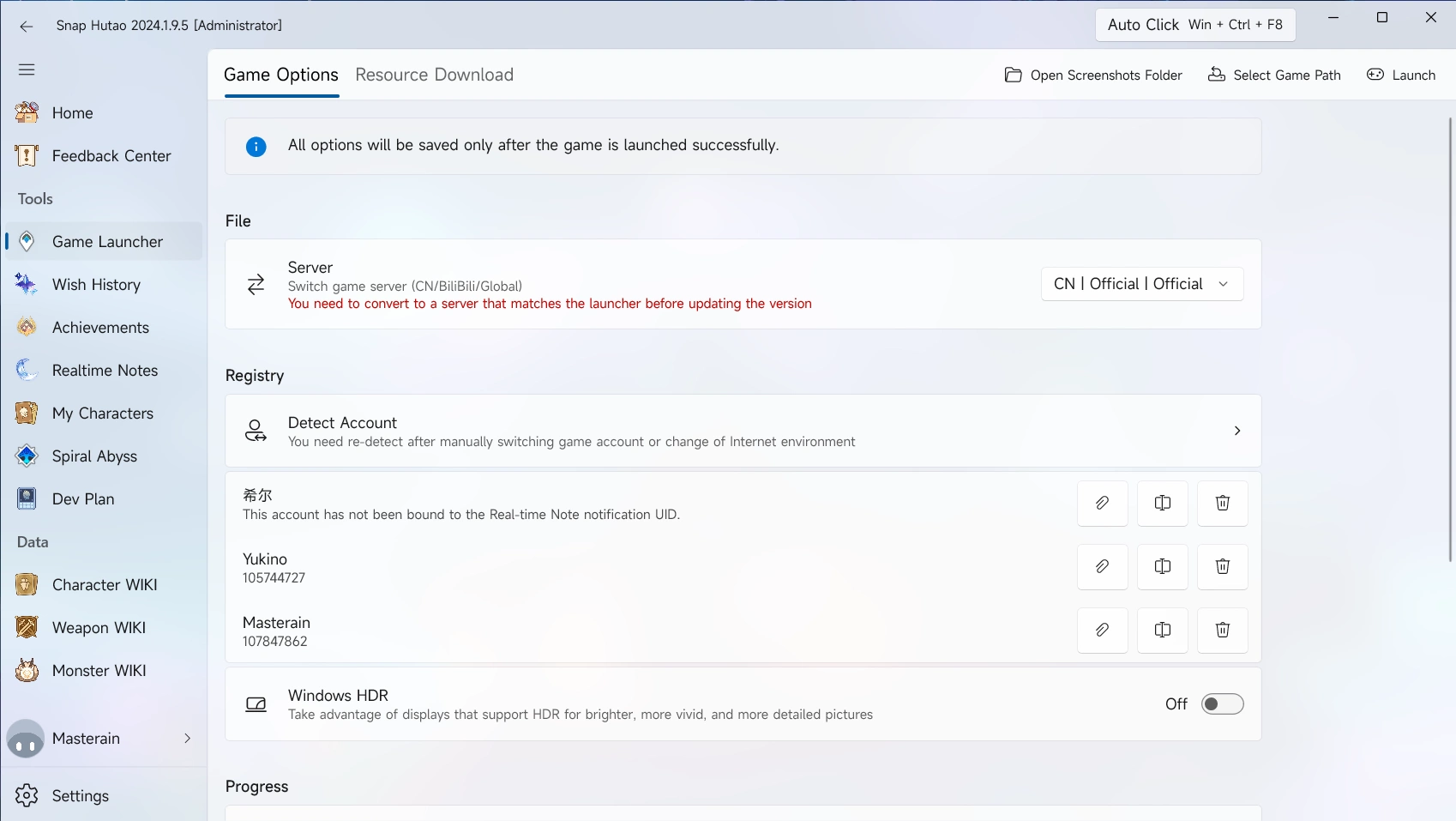
- Snap Hutao offers advanced game launcher feature allows user to launch the game with self-defined settings
|
|
- Click on the `Game Launcher` on the sidebar to get into game launcher's page
|
|
- If you are using it at the first time, you will be redirected to Snap Hutao settings page and asked to set your game path
|
|
- When choosing the game path, noticed that you should choose game program instead of launcher program
|
|
- Such as `$\Genshin Impact\Genshin Impact Game\YuanShen.exe` and `$\Genshin Impact\Genshin Impact Game\Genshin Impact.exe`
|
|
- You can make launcher configuration options in the game launcher's page, and then click `Launcher` button on the top-right to launch the game. Launcher options is explained in the document below
|
|
|
|
## Server Switch
|
|
|
|
::: tip Privilege Notice
|
|
|
|
1. You need to run Snap Hutao as administrator to use this feature
|
|
2. Snap Hutao will create `ServerCache` folder in the data directory to save required sever switch files
|
|
|
|
:::
|
|
|
|
Enter Game Launcher page
|
|
In the `Server` field, select the server you want
|
|
|
|
Current available serves options include:
|
|
| Option | Server |
|
|
|----------------|-----------------------------------------------------------|
|
|
| CN Default | Mainland China server |
|
|
| CN Official | Mainland China server, no difference with previous row |
|
|
| CN NoTapTap | Mainland China server without TapTap account login method |
|
|
| BiliBili | Chinese server with BiliBili account system |
|
|
| Global Default | HoYoVerse servers |
|
|
| Global Epic | HoYoVerse servers with Epic Store payment gateway |
|
|
| Global Google | HoYoVerse servers with Google Pay payment gateway |
|
|
|
|
click `Launch` button on the top-right to launch the game, Snap Hutao will download server required files and then launch the game
|
|
|
|
## Game Account Switch
|
|
|
|
::: tip
|
|
|
|
The **account** mentioned in this feature is Genshin game login account instead of HoYoLAB account
|
|
|
|
:::
|
|
|
|
| | CN | Global | bilibili |
|
|
| ----------------- | --------- | --------- | ------------- |
|
|
| Save Login Status | Supported | Supported | Supported |
|
|
| Switch Account | Supported | Supported | Not Supported |
|
|
|
|
1. Enter Game Launcher page
|
|
2. Click `Detect Account` field in the `Registry` category, Snap Hutao will detect current Genshin Impact's account login status
|
|
3. In this pop-up window, enter an archive name for this account and click `Confirm`
|
|
4. Go back to the game, sign out and sign in to your another account, then end the game process. Repeat step 2 and 3 to add all your account to Snap Hutao
|
|
|
|
Each account is saved in a field under the `Detect Account` field, they are selectable
|
|
|
|
- On the right side, there are three buttons, they are:
|
|
- `Bind current user account`, bind current activated MiHoYo BBS account with this game account, an UID will be display on this archive
|
|
- `Rename`, rename current account archive name
|
|
- `Delete`, delete current account archive
|
|
|
|
## Genshin Impact HDR in Windows Platform
|
|
|
|
~~Genshin Impact currently has an HDR feature built in that can only be enabled by setting registry key values. Although this may mean that the feature is a test feature of the game, you can already experience it in advance!~~
|
|
|
|
~~You can enable the Genshin Impact HDR feature on the Windows platform to enhance the visual experience on monitors that support HDR. In the game launcher, you can enable the Windows HDR option, and Snap Hutao will activate this built-in feature of the game when the game starts.~~
|
|
|
|
Genshin Impact has temporarily disabled the HDR feature, so the feature will not work for the time being, even if you enable it in Snap Hutao.
|
|
|
|
## Launch Parameters
|
|
|
|
::: warning
|
|
|
|
- In some reported cases, using Snap Hutao with `Exclusive Fullscreen` mode will cause the game process no response.
|
|
|
|
- Suggest to use `Borderless` or `Fullscreen` mode if you faced same problem
|
|
- The problem is caused by failure of game embedded browser cannot run
|
|
|
|
:::
|
|
|
|
- Enter Game Launcher page
|
|
- In the `Progress` category, enable `Launch Parameters` and expand it to see more detailed options:
|
|
- `-window-mode exclusive` parameter
|
|
- **Exclusive Full Screen**, i.e., select the game process to run in exclusive full-screen mode
|
|
- **This feature is incompatible with the in-game browser feature, you should only enable this option if you can independently describe the technical principles and effects of exclusive full screen**
|
|
- `-screen-fullscreen` parameter
|
|
- **Full Screen**, i.e., choose whether to set the game interface as full screen after launching the game
|
|
- `-popupwindow` parameter
|
|
- **Borderless**, i.e., choose whether to set the game interface as a borderless window after launching the game
|
|
- `-platform_type CLOUD_THIRD_PARTY_MOBILE` parameter
|
|
- **Touch Screen Mode**, i.e., enable the touch screen operation mode built into Genshin Impact
|
|
- Resolution
|
|
- This feature can quickly set the options to override screen width and height
|
|
- `-screen-width` parameter
|
|
- **Width**, i.e., choose the width of the game interface after launching the game, for example, `1920`
|
|
- `-screen-height` parameter
|
|
- **Height**, i.e., choose the height of the game interface after launching the game, for example, `1080`
|
|
- `-monitor` parameter
|
|
- **Monitor**, allows users with multiple monitors to choose a specific monitor to run the game
|
|
- If you can't determine which monitor each option represents, you can click `Identify Monitor` to get a hint.
|
|
::: warning
|
|
Please note that modifying the primary monitor may cause the game to appear on a monitor that does not correspond to the numbered monitor.
|
|
:::
|
|
|
|
## Resource Download
|
|
|
|
Game launcher in Snap Hutao also offers resource download feature, which lists real time Genshin Impact (CN server)
|
|
client package and OTA package. User can click the hyperlink icon on each package's right side to redirect to browser to
|
|
download them by user favored download tools.
|
|
|
|
When you are updating the game client, you can do the following steps:
|
|
|
|
1. Update official launcher to the latest
|
|
2. In `Snap Hutao - Game Launcher - Resource Download`, find needed client OTA package and installed language OTA package
|
|
3. Move all package to folder where game client located
|
|
4. Start official launcher, click on update button. The launcher should skip the download and directly starts to unzip the OTA packages to update client
|
|
|
|
## Advanced Features
|
|
|
|
::: caution
|
|
|
|
- Be aware: all advanced features are labeled as `Dangeroud Feature`; indicating that enabling them means you choose
|
|
to assume any risk on your own.
|
|
- **You need to enable advanced features in Snap Hutao's settings page**
|
|
|
|
:::
|
|
|
|
### Unlock Frame Rate Limit
|
|
|
|
::: caution
|
|
|
|
- The [Unlocker project](https://github.com/DGP-Studio/Unlocker) only affects the UnityPlayer itself, directly affecting
|
|
the Unity3D engine, and does not have a direct relationship with the game itself. Essentially, it is no different from
|
|
settings like 120 FPS in mobile devices. However, you should still use it with caution and read the [user agreement](../statements/tos.md)
|
|
on your own.
|
|
|
|
:::
|
|
|
|
- Run Snap Hutao as administrator
|
|
- Make sure `Advanced Feature` is enabled in Snap Hutao settings
|
|
- Enter Game Launcher page
|
|
- At the bottom of the page, you can find `Unlock Frame Rate Limit` option
|
|
- Trigger the switch to enable or disable this feature
|
|
- In the `Set Frame Rate Limit` field, you can adjust the limit freely
|
|
- Click `Start Game` button on the top right
|
|
|
|
Fact that may cause **failure in unlocking frame rate limit**:
|
|
|
|
1. Snap Hutao process is not kept in the background
|
|
2. `V-Sync` is not set to off in the game
|
|
3. `Max Framerate` limit is not changed in your graphic card settings
|
|
4. `Power Saving` mode is not disabled in power settings
|
|
5. Your graphic card is not powerful enough
|
|
|
|
## InterProcess
|
|
|
|
> InterProcess is a professional term in the computer field. In this paragraph, it refers to the linkage function between Snap Hutao and other applications.
|
|
|
|
### Game Hours Record
|
|
|
|
**To use Game Hours Record feature, you need install and config [Starward](https://github.com/Scighost/Starward) application**
|
|
|
|
With this feature enabled, Snap Hutao will call the Starward communication interface to start time statistics after Snap Hutao starts Genshin Impact game. You will be able to see your game time statistics in the Starward.
|
|
|
|
### Better GI
|
|
|
|
> Better Genshin Impact is not available in languages other than Simplified Chinese
|
|
|
|
**To use Better GI linkage function, you need install and config [Better Genshin Impact](https://bgi.huiyadan.com/) application**
|
|
|
|
With this feature enabled, Snap Hutao will call Better Genshin Impact's communication interface, allowing it to activate its automated features based on computer vision technology after Snap Hutao launches the game.
|
|
|
|
### Discord Activity
|
|
|
|
**To enable Discord Activity, you need install and config [Discord](https://discord.com/) application**
|
|
|
|
With this feature enabled, Snap Hutao will generate real-time Discord Activity in your Discord card.
|
|
|
|
## FAQ
|
|
|
|
### Use Snap Hutao to quick start the game
|
|
|
|
- Config the advanced game launcher in Snap Hutao
|
|
- If Snap Hutao main window is opened, you can click the `Launch Game` frame in Dashbaord
|
|
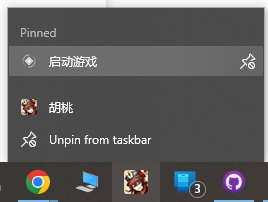
- If you have Snap Hutao running in the backstage, you can click the Snap Hutao icon in the system tray to open the quick start menu
|
|
|
|
|
|
|
|
- Select `Lauch Game`, you will be asked which account to start the game
|
|
|
|
### Game Account Lose Login Status in the Launcher
|
|
|
|
- There are two factors associated with game account login status: network and device ID
|
|
- This issue usually caused by:
|
|
- Change of public IP address
|
|
- Change of network adapter or network adapter MAC address
|
|
- Failed saving operation, no real login status been saved (Snap Hutao cannot detect if the status is real valid)
|
|
- Make sure to enter the game after sign in
|
|
- Make sure the game process is gone after closing the game
|
|
- Detect the account again to save your login status
|
|
|
|
### How to Recover `config.ini` Configuration File
|
|
|
|
In some particular conditions (such as wrong game folder permission), `config.ini` may lose after server conversion.
|
|
This will cause user not able to get into advanced launcher page and launch the game.
|
|
|
|
After identify the server version on your device, you can manually create and fill the configuration file with the right
|
|
content. The following are common configurations.
|
|
|
|
::: info
|
|
Please modify `game_version` to the current game version yourself
|
|
:::
|
|
|
|
::: tabs#game_config_samples
|
|
|
|
@tab CN Server Official
|
|
|
|
```
|
|
[General]
|
|
channel=1
|
|
cps=mihoyo
|
|
game_version=4.1.0
|
|
sub_channel=1
|
|
plugin_7_version=1.0.0
|
|
```
|
|
|
|
@tab Global Server Official
|
|
|
|
```
|
|
[General]
|
|
channel=1
|
|
cps=mihoyo
|
|
game_version=4.1.0
|
|
sub_channel=0
|
|
plugin_7_version=1.0.0
|
|
```
|
|
|
|
:::
|