mirror of
https://jihulab.com/DGP-Studio/Snap.Hutao.Docs.git
synced 2025-11-19 21:16:31 +08:00

126 lines
5.3 KiB
Markdown
126 lines
5.3 KiB
Markdown
---
|
|
headerDepth: 2
|
|
icon: ask
|
|
category:
|
|
- FAQ
|
|
order: 1
|
|
---
|
|
|
|
# FAQ
|
|
|
|
## How to create desktop shortcut
|
|
|
|
::: tip Community Power
|
|
|
|
Thanks to [solution provided by CzHUV](https://github.com/DGP-Studio/Snap.Hutao.Docs/issues/12)。
|
|
|
|
:::
|
|
|
|
- Use `Win+R` to start run, in the window input `shell:AppsFolder` 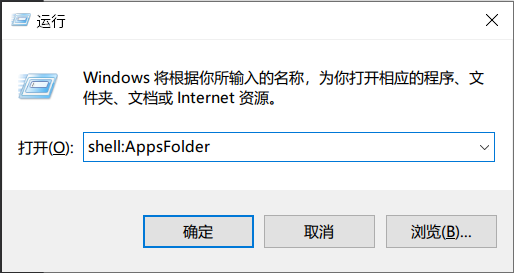
|
|
- In the new pop-up window, find Snap Hutao
|
|
- Right lick on it, and click `Create shortcut`
|
|
- Confirm the operation and you will get the desktop shortcut
|
|
|
|
## How to create desktop shortcut with Administrator privilege
|
|
|
|
::: tip Community Power
|
|
|
|
Thanks to [solution provided by Parsifa1](https://github.com/DGP-Studio/Snap.Hutao.Docs/issues/17)。
|
|
|
|
:::
|
|
Fundamental principle: Use the following PowerShell scrip can run Snap Hutao with Administrator privilege
|
|
|
|
```PowerShell ts:no-line-numbers
|
|
Start-Process shell:AppsFolder\60568DGPStudio.SnapHutao_ebfp3nyc27j86!App -verb runas
|
|
```
|
|
|
|
- In your desktop, select `New` -> `Shortcut`
|
|
- In the field of `Type the location of the item`, input:
|
|
|
|
```PowerShell ts:no-line-numbers
|
|
powershell -Command "Start-Process shell:AppsFolder\60568DGPStudio.SnapHutao_ebfp3nyc27j86!App -verb runas
|
|
```
|
|
|
|
- Name the shortcut as `Snap Hutao`
|
|
- Confirm the creation, and you will get this shortcut with PowerShell logo
|
|
- Right-click on this shortcut, select `Properties`
|
|
- Change value of `Run` to `Minimized`
|
|
- Select `Change Icon`, fill the blank with `%ProgramFiles%\WindowsApps\60568DGPStudio.SnapHutao_1.6.6.0_x64__ebfp
|
|
3nyc27j86\Snap.Hutao.exe` and save the configuration
|
|
- Now, you get a shortcut of Snap Hutao with Administrator privilege
|
|
- You can also pin it to task bar or start menu
|
|
|
|
## How to run Snap Hutao when Windows starts
|
|
|
|
**This is a workaround solution**
|
|
|
|
- Create a bat file, content refers to [this Issue](https://github.com/DGP-Studio/Snap.Hutao/issues/184), it allows bat to run Snap Hutao with Administrator privilege
|
|
- Create a Scheduled Task, run the bat when Windows startup, or drag it to Windows start folder
|
|
|
|
## Use Snap Hutao to quick start the game
|
|
|
|
- Config the game launcher in the settings
|
|
- Pin Snap Hutao on taskbar
|
|
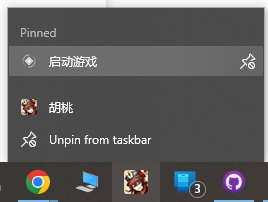
- Right click on Snap Hutao and you will see the quick launcher
|
|
|
|
|
|
|
|
- Select `Lauch Game`, you will be asked which account to start the game
|
|
|
|
## Use Snap Hutao with Network Proxy
|
|
|
|
Refer to [HttpRequestException Error (502)](exceptions.html#_502-bad-gateway) document
|
|
|
|
## Mojibake in Snap Hutao
|
|
|
|
- If you are using Windows 10 and see some button are not display properly
|
|
- You can download `Segoe Fluent Icons` font
|
|
- You need to install it for all users
|
|
- You can find this font from [Microsoft](https://aka.ms/SegoeFluentIcons)
|
|
|
|
## MiHoYo BBS Account often Lose Login Status
|
|
|
|
Snap Hutao use saved MiHoYo BBS cookies to maintain login status. If you **log out** your account in your browser or
|
|
other device, cookie will become invalid, and Snap Hutao will also be forced to log out, account will be automatically
|
|
removed.
|
|
|
|
This problem may also be caused by network error, you should check this first; If it's not caused by network issue,
|
|
you can use `Refresh Cookie` in the account panel; You can also remove your account manually and add it back again.
|
|
|
|
Since October 2022, MiYouShe (Chinese BBS) rapidly increased bot detection and may set users' account as under-risk status,
|
|
this may cause Snap Hutao failed to check validation of the cookie
|
|
|
|
## Game Account Lose Login Status in the Launcher
|
|
|
|
- There are two factors associated with game account login status: network and device ID
|
|
- This issue usually caused by:
|
|
- Change of public IP address
|
|
- Change of network adapter or network adapter MAC address
|
|
- Failed saving operation, no real login status been saved (Snap Hutao cannot detect if the status is real valid)
|
|
- Make sure to enter the game after sign in
|
|
- Make sure the game process is gone after closing the game
|
|
- Detect the account again to save your login status
|
|
|
|
## Snap Hutao Throws Failed to add Scheduled Task Error
|
|
|
|
If you are using Administrator privilege to start real-time notes feature, Snap Hutao's scheduled task will be created
|
|
as Administrator role. When next time edit real-time notes settings without Administrator privilege, the program will
|
|
have a lack of privilege to edit the settings and throw out this error.
|
|
|
|
Run Snap Hutao as Administrator to edit your settings to solve this issue.
|
|
|
|
## Stuck at `Installing Required Framework` when Using MSIX Package to Install
|
|
|
|
- When user's OS missing required dependency framework, Windows will download and install it automatically.
|
|
However, if the user disabled Windows Update or have a bad network, the system is unable to process this installation.
|
|
- Make sure Windows Update is enabled; Snap Hutao's update also relies on it
|
|
- You can also download and install the [dependency](ttps://d.hut.ao/releases/Dependency) manually
|
|
|
|
## Unable to Run Snap Hutao as Administrator
|
|
|
|
> This issue only occurs in Windows 10 older than 22H2 version
|
|
|
|
- When user's OS version older than `Windows Build 19045` (aka Windows 10 22H2), Snap Hutao is unable to start when
|
|
running as Administrator
|
|
- This issue comes from Windows kernel, and it's hard to locate, so we suggest you to update your OS to the latest version
|