mirror of
https://jihulab.com/DGP-Studio/Snap.Hutao.Docs.git
synced 2025-11-19 21:16:31 +08:00

140 lines
6.3 KiB
Markdown
140 lines
6.3 KiB
Markdown
---
|
|
headerDepth: 2
|
|
category: [Feature, Tutorial]
|
|
tag: [unlock framerate, convert server, switch account]
|
|
order: 3
|
|
comment: false
|
|
---
|
|
|
|
# Game Launcher
|
|
|
|
|
|
|
|
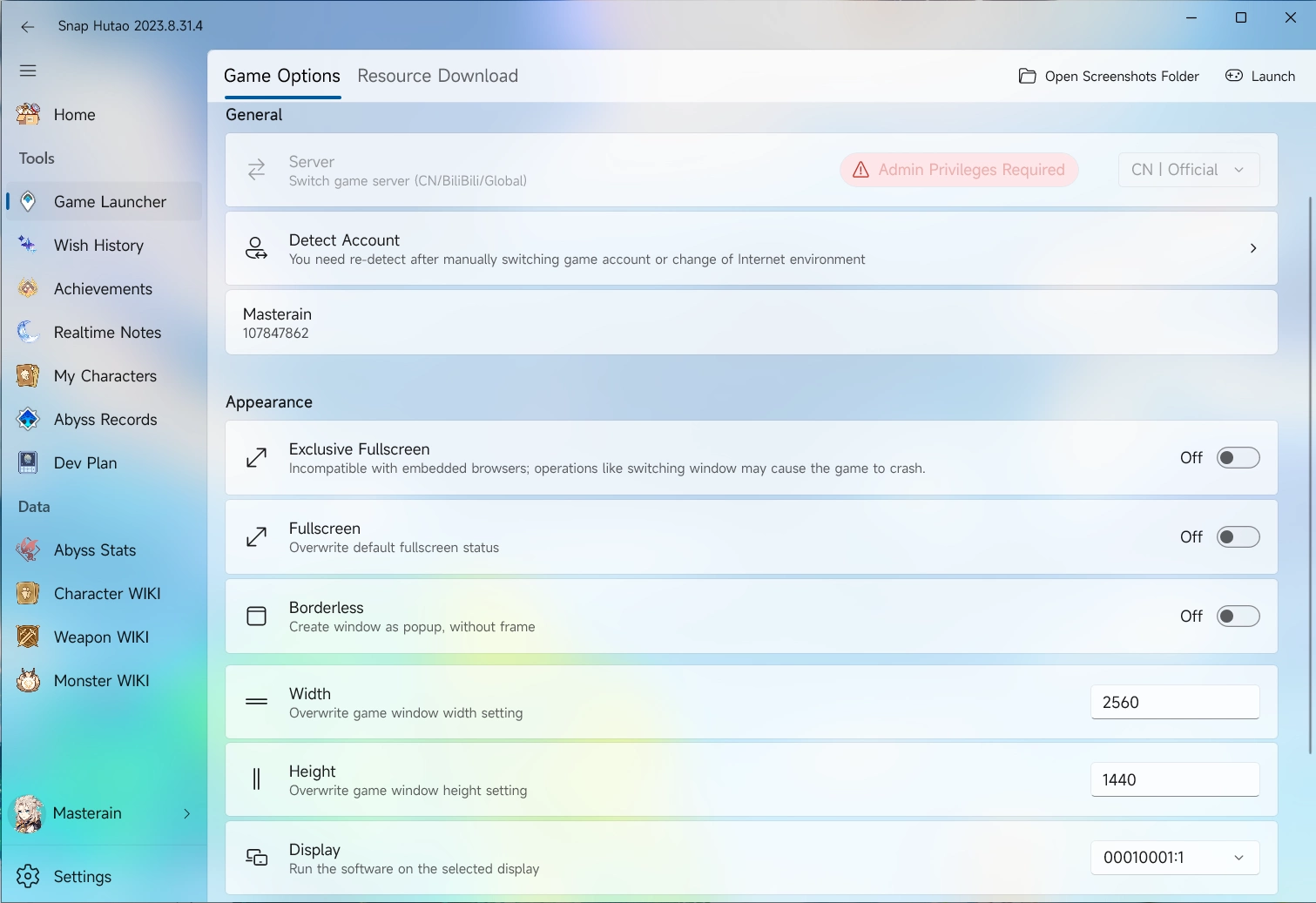
- Snap Hutao offers advanced game launcher feature allows user to launch the game with self-defined settings
|
|
- Click on the `Game Launcher` on the sidebar to get into game launcher's page
|
|
- If you are using it at the first time, you will be redirected to Snap Hutao settings page and asked to set your game path
|
|
- When choosing the game path, noticed that you should choose game program instead of launcher program
|
|
- Such as `$\Genshin Impact\Genshin Impact Game\YuanShen.exe` and `$\Genshin Impact\Genshin Impact Game\Genshin Impact.exe`
|
|
- Official launcher program is usually `$\Genshin Impact\launcher.exe`
|
|
- You can make launcher configuration options in the game launcher's page, and then click `Launcher` button on the top-right to launch the game
|
|
- Launcher options is explained in the document below
|
|
|
|
## Server Switch
|
|
|
|
::: tip Privilege Notice
|
|
|
|
1. You need to run Snap Hutao as administrator to use this feature
|
|
2. Snap Hutao will create `ServerCache` folder in the data directory to save required sever switch files
|
|
|
|
:::
|
|
|
|
Enter Game Launcher page
|
|
In the `General - Server` field, select the server you want
|
|
|
|
- Current available serves options include:
|
|
|
|
| Option | Server |
|
|
| -------------- | --------------------------------------------------------- |
|
|
| CN Default | Mainland China server |
|
|
| CN Official | Mainland China server, no difference with previous row |
|
|
| CN NoTapTap | Mainland China server without TapTap account login method |
|
|
| BiliBili | Chinese server with BiliBili account system |
|
|
| Global Default | HoYoVerse servers |
|
|
| Global Epic | HoYoVerse servers with Epic Store payment gateway |
|
|
| Global Google | HoYoVerse servers with Google Pay payment gateway |
|
|
|
|
- click `Launcher` button on the top-right to launch the game, Snap Hutao will download server required files and then launch the game
|
|
|
|
## Game Account Switch
|
|
|
|
::: tip
|
|
|
|
1. The **account** mentioned in this feature is Genshin game login account instead of HoYoLAB account
|
|
2. Game account switch feature currently only supporting official CN server
|
|
|
|
:::
|
|
|
|
| | CN | BiliBili | Global |
|
|
| ----------------- | --------- | ------------- | --------- |
|
|
| Save Login Status | Supported | Supported | Supported |
|
|
| Switch Account | Supported | Not Supported | Supported |
|
|
|
|
1. Enter Game Launcher page
|
|
2. Click `Detect Account` field in the `General` category, Snap Hutao will detect current Genshin Impact's account login status
|
|
3. In this pop-up window, enter an archive name for this account and click `Confirm`
|
|
4. Go back to the game, sign out and sign in to your another account. Repeat step 2 and 3 to add all your account to Snap Hutao
|
|
- Each saved account are selectable
|
|
- On the right side, there are three buttons, they are:
|
|
- `Bind current user account`, bind current activated MiHoYo BBS account with this game account, an UID will be display on this archive
|
|
- `Rename`, rename current account archive name
|
|
- `Delete`, delete current account archive
|
|
|
|
## Appearance
|
|
|
|
::: warning
|
|
|
|
- In some reported cases, using Snap Hutao with `Exclusive Fullscreen` mode will cause the game process no response.
|
|
|
|
- Suggest to use `Borderless` or `Fullscreen` mode if you faced same problem
|
|
- The problem is caused by failure of game embedded browser cannot run
|
|
|
|
:::
|
|
|
|
- Enter Game Launcher page
|
|
- In the `Appearance` category, there are 6 available options:
|
|
- **Exclusive Fullscreen**, the game process will run in exclusive fullscreen mode
|
|
- **You should only use this option when you are able to independently describe technical principles and effects of exclusive fullscreen**
|
|
- **Fullscreen**, the game display mode is set to fullscreen
|
|
- **Borderless**, the game display mode is set to borderless
|
|
- **Width**, game window width, such as `1920`
|
|
- **Height**, game window height, such as `1080`
|
|
- **Display**, users with multiple displays can use this option to set which display to run the game
|
|
|
|
## Resource Download
|
|
|
|
Game launcher in Snap Hutao also offers resource download feature, which lists real time Genshin Impact (CN server)
|
|
client package and OTA package. User can click the hyperlink icon on each package's right side to redirect to browser to
|
|
download them by user favored download tools.
|
|
|
|
When you are updating the game client, you can do the following steps:
|
|
|
|
1. Update official launcher to the latest
|
|
2. In `Snap Hutao - Game Launcher - Resource Download`, find needed client OTA package and installed language OTA package
|
|
3. Move all package to folder where game client located
|
|
4. Start official launcher, click on update button. The launcher should skip the download and directly starts to unzip the OTA packages to update client
|
|
|
|
## Advanced Features
|
|
|
|
::: caution
|
|
|
|
- Be aware: all advanced features are labeled as `Dangeroud Feature`; indicating that enabling them means you choose
|
|
to assume any risk on your own.
|
|
- You need to enable advanced features in Snap Hutao's settings page
|
|
|
|
:::
|
|
|
|
### Unlock Frame Rate Limit
|
|
|
|
::: caution
|
|
|
|
- The [Unlocker project](https://github.com/DGP-Studio/Unlocker) only affects the UnityPlayer itself, directly affecting
|
|
the Unity3D engine, and does not have a direct relationship with the game itself. Essentially, it is no different from
|
|
settings like 120 FPS in mobile devices. However, you should still use it with caution and read the [user agreement](../statements/tos.md)
|
|
on your own.
|
|
|
|
:::
|
|
|
|
- Run Snap Hutao as administrator
|
|
- Enter Game Launcher page
|
|
- At the bottom of the page, you can find `Unlock Frame Rate Limit` option
|
|
|
|
- Trigger the switch to enable or disable this feature
|
|
- In the `Set Frame Rate Limit` field, you can adjust the limit freely
|
|
|
|
- Fact that may cause **failure in unlocking frame rate limit**:
|
|
- Snap Hutao process is not kept in the background
|
|
- `V-Sync` is not set to off in the game
|
|
- `Max Framerate` limit is not changed in your graphic card settings
|
|
- `Power Saving` mode is not disabled in power settings
|
|
- Your graphic card is not powerful enough
|